Features

What CarrierCaddy does

The tools for working a route, on Android and iPhone. Open any one to see how it works.

On the route

The right information, in the order you work.

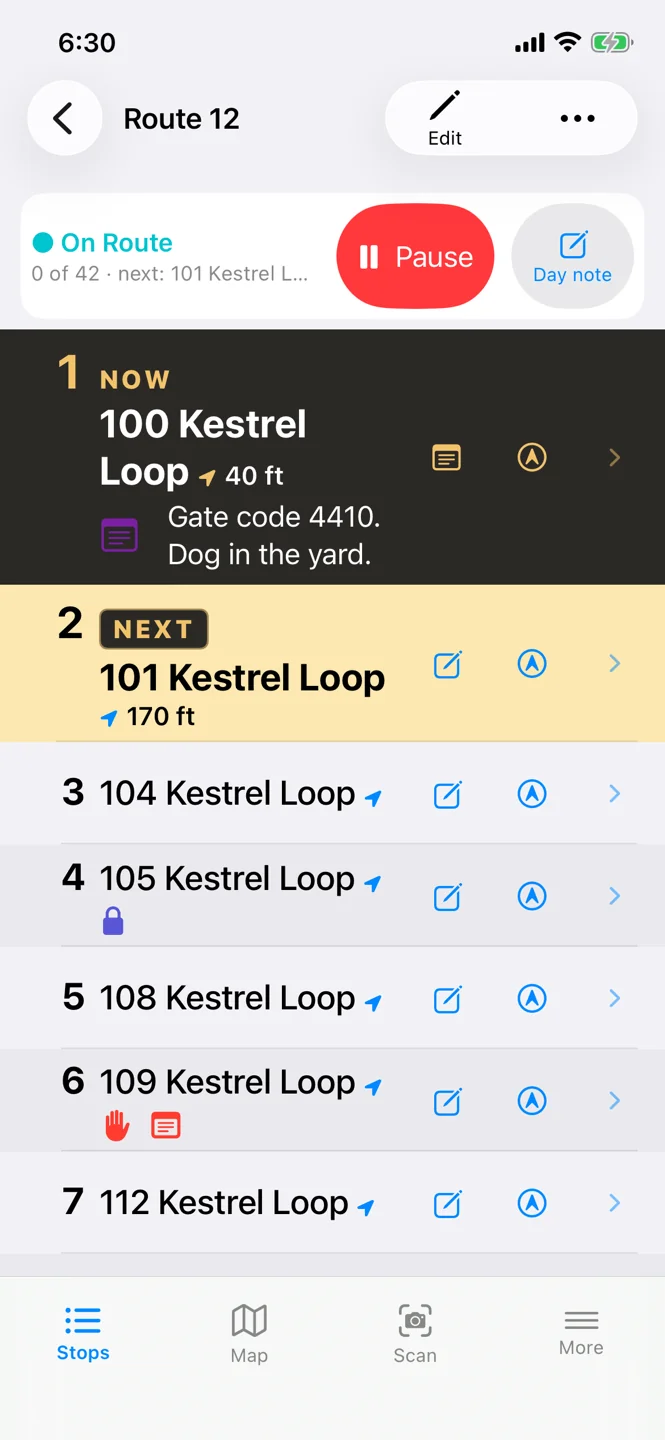
On Route: the stop you’re working, and what comes next

Your current stop

A list that follows the route, not just the nearest address.

On Route moves the current stop along as you work, using your position and the route’s order, and you can always pick the right stop yourself. Nearby stops are grouped as one, at a distance you choose. Stops at one place, like a front desk or a drop point, can be made a shared spot: one position, one stop On Route.
Spoken reminders

Hear what is waiting at each stop as it comes up.

As each stop comes up, CarrierCaddy reads out what’s waiting there. By default it speaks one stop ahead; you can switch to a distance and choose whether holds, forwards and notes are spoken. It speaks English or Spanish, following your phone’s language.

Complete stop instructions

Notes, dates and names stay with the address.

Keep holds, forwards, vacancies, do-not-deliver names and accepted-name lists with each stop, beside your own notes, each with its dates and the names it covers. Every kind of instruction on a route gets its own list: tap one to see each stop that has it, in route order.

The map and the way to your next stop

See the route, follow the line to the next stop, and hand any stop to your maps app.

See your stops in order on the map, with a dashed line and arrows from where you are to the next stop. Free shows a straight line from stop to stop; Plus draws the road path along the real roads, keeps it on the phone and redraws it when the route changes. Locate stops finds positions for stops that have none, and a position you set at the stop always wins.

A navigation button on every stop hands that address to your phone’s own maps app for turn-by-turn directions; only the address goes with it. The map in the app is Google Maps on both phones, and it needs a connection.

The road pathPlus

Your route along the real roads, with the way ahead lit up.

Your route drawn along the real roads, with the stretch to your next stop lit up and arrows that hold still as you drive. It stays on the map if the signal drops and redraws itself after you change the route.

Morning digest and recovery

Know what changes today before you leave.

Turn on the morning digest for a route, and each morning a notification lists what matters today: holds ending, anything starting today, forwards in force and do-not-deliver names. If On Route is interrupted, pick up where you left off or start fresh.

Build and scan

Less retyping, with a review before you commit.

Build a reusable route

Start with a list, the address in front of you, or a route a coworker sent.

Make a route for your kind of work, then fill it by scanning a printed list, typing addresses, looking up the address where you’re standing, or taking in a route a coworker sent. Check the order and the map before you save. Do setup while parked. Come to a stop before you tap; never use the app while driving.

Match labels to stops

Read an address and find it in your route.

Point the camera at a label and CarrierCaddy reads the address on the phone, finds its stop, and shows its number and what’s flagged there; add a package or any of the route’s items in a tap. No label, or a smudged one? Tap Type an address, or dictate it with your keyboard’s microphone; it’s matched the same way. Always check the number and street.

Parcel runs

Temporary sessions for a fresh stack of labels.

Camera-first parcel runs

Open a run and start scanning.

A new parcel run opens straight into the camera. Scan the stack, or type an address, then Plan: the phone orders the run itself, keeping each street whole and following your saved routes around corners, and you can drag any stop to change the order. It’s a suggested order, not a promise of the shortest drive. Smaller runs are planned free; Plus plans runs of any size.

Parcel run history

Keep a reference without cluttering your regular routes.

Past runs stay in Parcel run history, apart from your regular routes, so you can look back at one. Long-press an entry for its actions, including Delete.

Records, sharing and backups

Keep the work useful beyond today.

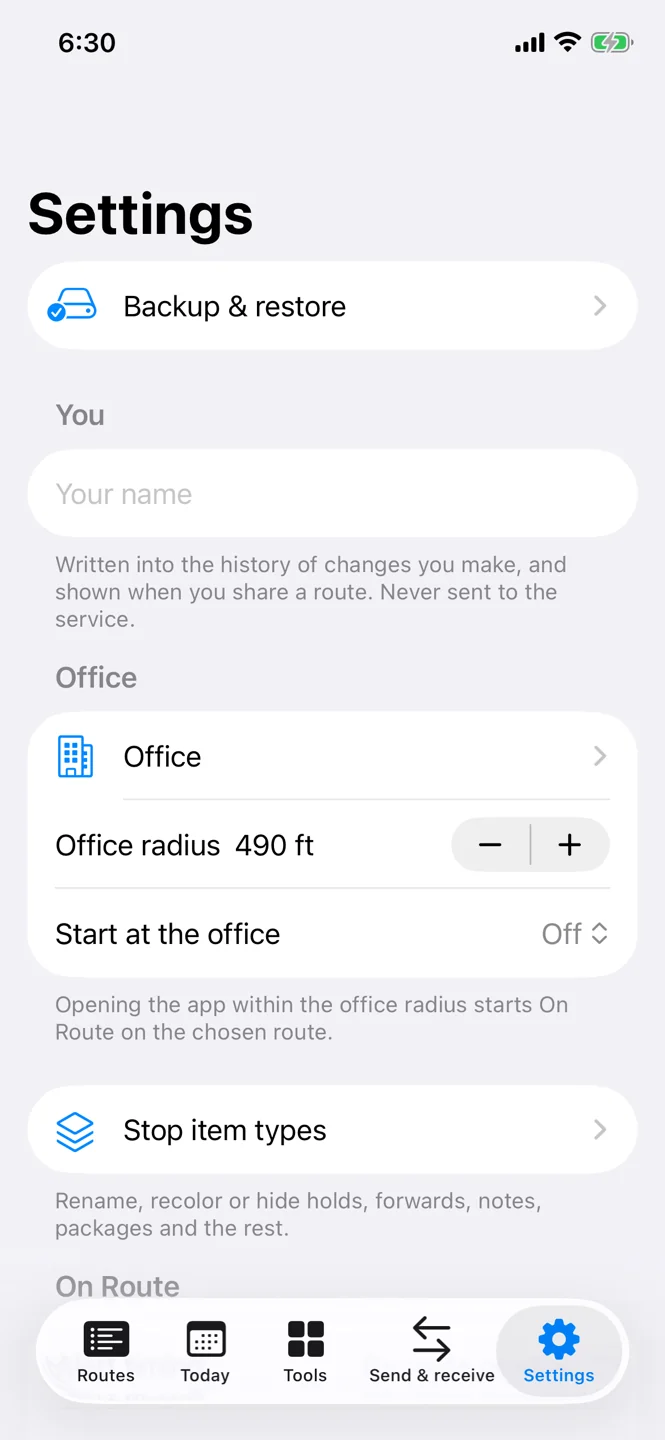
Settings, with Backup & restore at the top

Route edits and route copies

Change the order without retyping the instructions.

Edit addresses and move stops, and their instructions move with them; undo and redo cover your route edits. To try another order for the same route, make a route copy: it changes without touching the original.

Day records and breaks

Times, mileage and breaks in one place.

Review and edit each day’s times, mileage and breaks, with a break timer and the history of your route sessions. As a route starts and ends, the phone can ask for the odometer reading, so the day’s miles are recorded without a second thought. Automatic times are a reference, not an official time clock.

Trends

Understand your records without turning work into a race.

Basic Trends charts your recorded work over time, free. It describes the time you recorded, not driving safety or a pace to keep.

Workday insightsPlus

How today compares with your own past days.

Your hours on the route against your own past days on the same weekday: the typical time and the range, breaks included.

Send a route, phone to phone

Give a coworker the details, not just the addresses.

Pair once with a coworker’s phone by comparing a code in person, then send encrypted route updates whenever the route changes, with no daily password. The first update arrives as a linked copy; later ones update it, and any edits your coworker made are kept in a separate copy. Nothing is stored on a CarrierCaddy server.

Without pairing, send a sealed file and give its code separately, or show QR codes in person. A complete route can include notes, hold details, forward names and other instructions; QR codes shown in person are not encrypted.

Encrypted backups for either phone

Your files, encrypted, kept wherever you choose.

Settings → Backup & restore makes an encrypted backup file that either phone can restore, kept wherever you choose. Restoring adds your routes and tools beside what’s already on the phone, rather than replacing it.

Offline use and phone controls

The route keeps working without a signal.

Saved routes and instructions, On Route and its spoken reminders, and label reading all work on the phone without a connection; lookups, the road path and the map need one. Set the text size, voice and keep-awake to suit you; Android also has home-screen widgets.

The apps also carry other tools: a sorting rack with printable shelf labels, printed route sheets, a barcode wallet, a backup scanner and a reference library.

Step-by-step help is in the guide

Whatever your route

Each route uses the item types its work needs, chosen when you make it and changed whenever you like. Every built-in type is free; your own item types are Plus.

  • Deliveries
  • Pickups
  • Route sales
  • Parcels and letters
  • Inspection routines
  • Anything else with stops

Ready when your route is.

Free for Android and iPhone, with no account to make.